Booking Creation

Written by Jenn Southan
Updated at September 30th, 2026
Table of Contents
Adding Trips into Tobi
There are four ways to add bookings/trips into Tobi:
- Manual entry via the Booking Form
- CSV trip upload
- Facility Booking Portal
- API Integration
Manual entry via the Booking Form
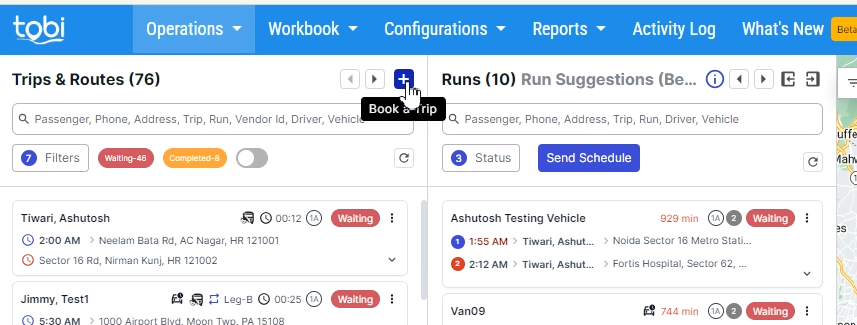
Hover over the "Operations" menu and select "Book a Trip," or choose the "+" option on the top right of the “Trips & Routes” pane.
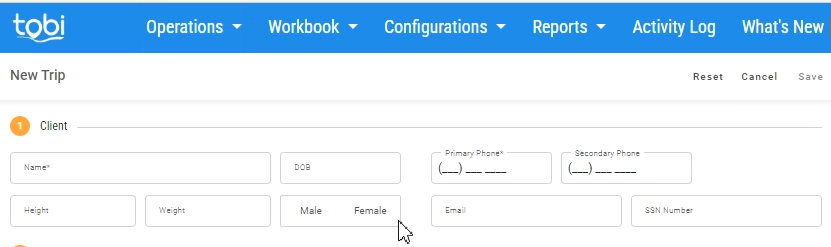
Client Information
- Client details will be auto-populated from their client profile.
- Only name and phone number are required.
- Adding any other details will save to the client profile.
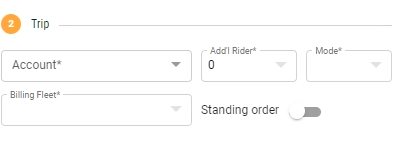
Trip Information
- Account - The account from which the booking has been received.
- Additional Rider - Any companion or additional person accompanying the primary client. You can choose a maximum of three riders.
- Billing Fleet
- Mode - Choose vehicle modes like ambulette, taxi, van, or livery.
- Standing order- Create recurring booking by configuring repeat days of the week, end dates, and exclusion dates.
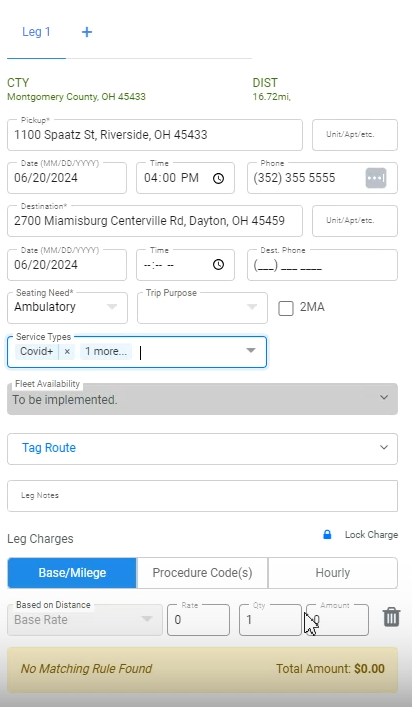
Leg Details
- Pickup details like address, date of service, and scheduled time.
- Drop off details like address, date of service, and scheduled time.
- Seating need- Choose the seating from ambulatory, wheelchair, stretcher, bariatric wheelchair, or bariatric stretcher.
- 2MA (2-man assistance)- Enable the option to assign an assisting driver for pickup, drop-off, or both.
- Trip Purpose - Select the purpose of the trip, like an appointment, dialysis, Discharge, Program, or Other.
- Service types- Configure service types such as providing a wheelchair, oxygen, or stair chair to provide additional services to the client.
- Leg Notes - Add the notes for the driver for this trip leg.
- Leg Charges- Add the booking's fare. This can be calculated from the price rules or added manually.
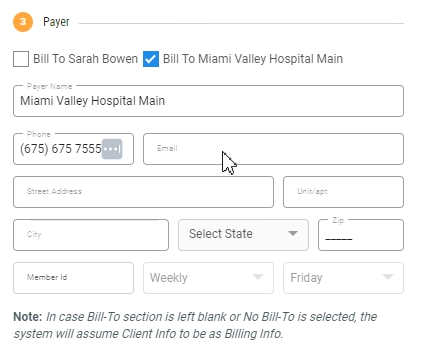
Payer Detail
- Select a payer for the booking. You can select the client or account as the payer.
- Payment Mode- Credit card, account, invoice, cash, or check
- In the case of account and Invoice, payment is collected from the account.
- Credit Card- You can add existing credit cards for the payer as a client or account but can only add new ones for the payer as a client. For accounts, the credit card can only be added through the account screen.
Notes
- You can add client notes and booking notes to the booking.
- The booking notes are attached with the booking whereas client notes are attached with clients and will be seen in every new booking.
- If marked as private, then notes are only visible to that web user, not the driver.




