Adding Users

Written by Jenn Southan
Updated at September 30th, 2026
Table of Contents
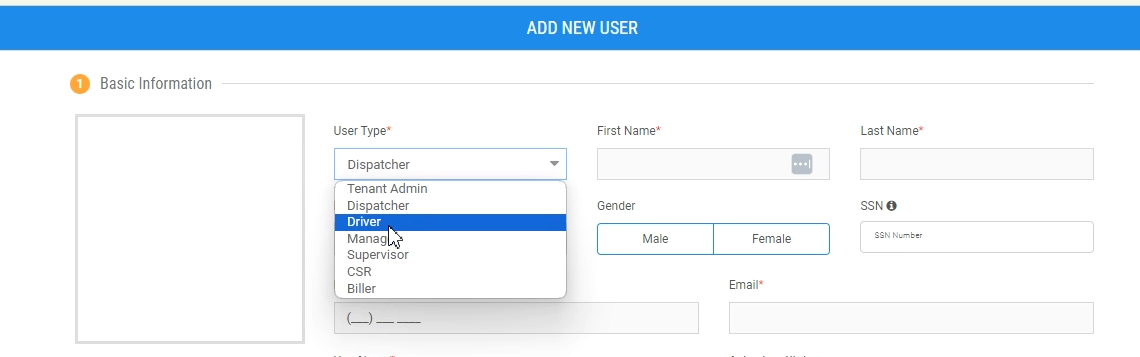
Below are the user roles that can be added in Tobi:
-
Tenant Admin: The Super Admin of the application and has access to all functions of the web-based application.
-
Dispatcher: Has access to Operations and Workbooks only and can only log in to the web-based application.
-
Driver: Any user who will be accessing the Tobi Driver application. This user can only log in to the driver app, not the web-based application.
-
Manager: A manager can log in to the web-based application.
-
Supervisor-: A supervisor can log in to the web-based application.
- Note: Admins can deactivate the users as well.
| Roles | Service Areas | Accounts | Fleet | Users | Vehicles | Price Rules | Service Codes | Revenue Report | Import Payments & Trips |
| Admin | Yes | Yes | Yes | Yes | Yes | Yes | Yes | Yes | Yes |
| Manager | No | Yes | No | Yes | Yes | Yes | Yes | Yes | Yes |
| Biller | No | Yes | No | No | No | No | No | Yes | No |
| Supervisor | No | No | No | Yes | Yes | No | No | No | Yes |
| Dispatcher | No | No | No | No | No | No | No | No | No |
| CSR | No | No | No | No | No | No | No | No | No |
How to Add a User
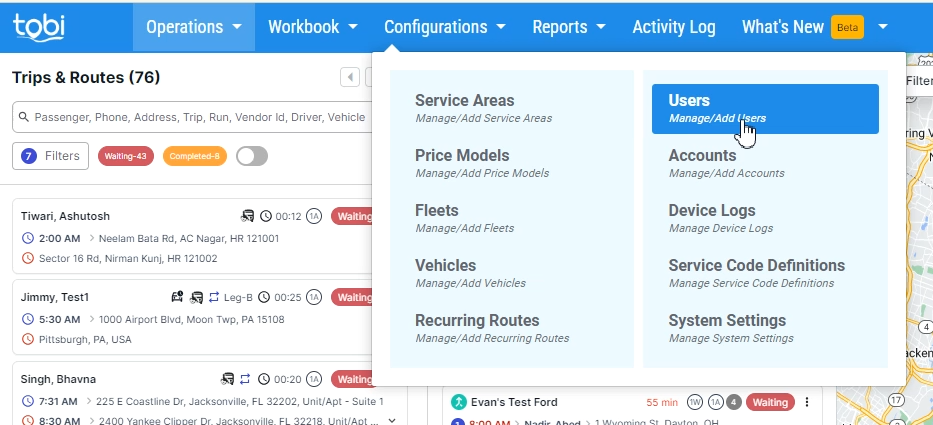
- Navigate to “Configurations > Users.”
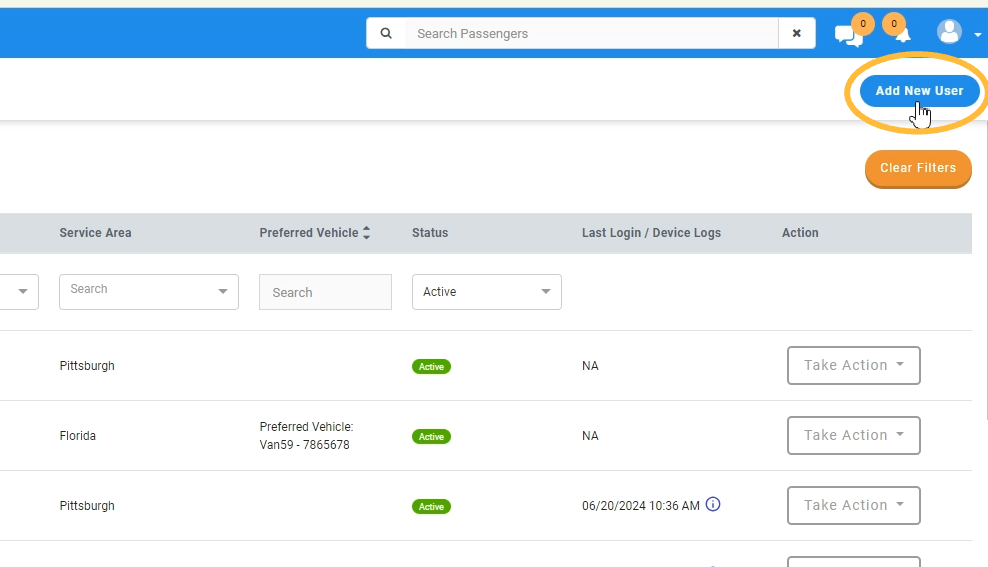
- Click on “Add New User.”
- Select the User Type
- Provide the information in the form and click save.
Note: Anything with a red asterisk is required and varies based on the User Type.
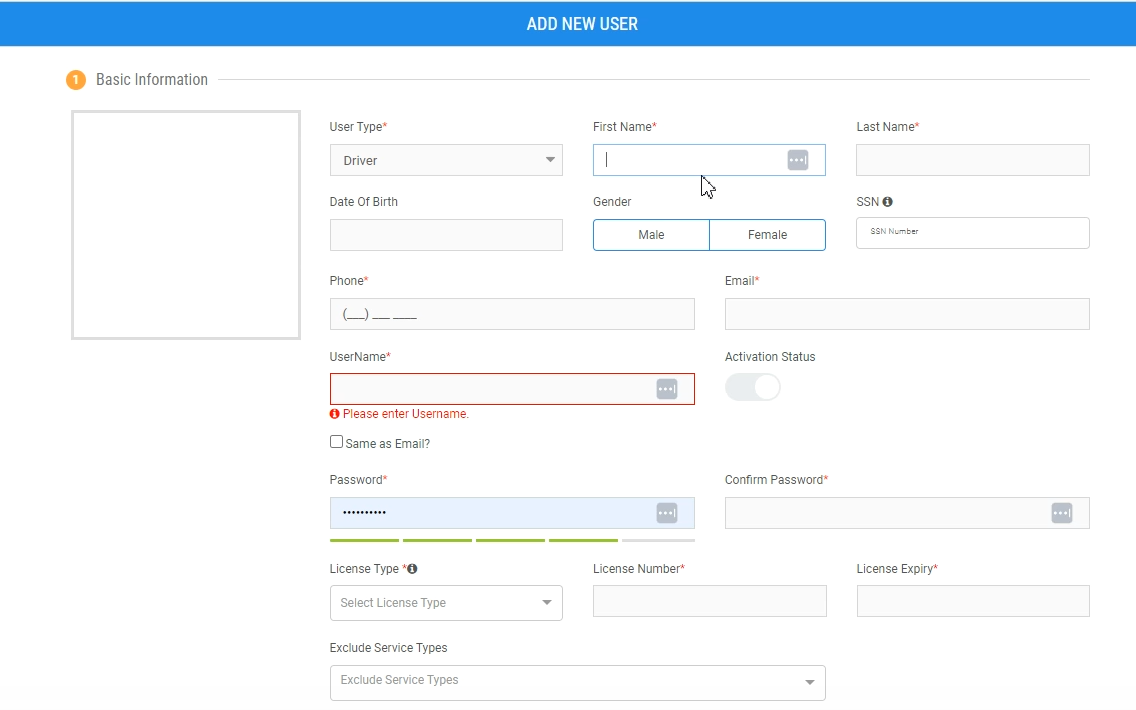
For Drivers:
Fleet Allocation
- A driver can be associated with multiple fleets
- For each fleet, the driver can be associated with multiple service areas.

Driver Schedule
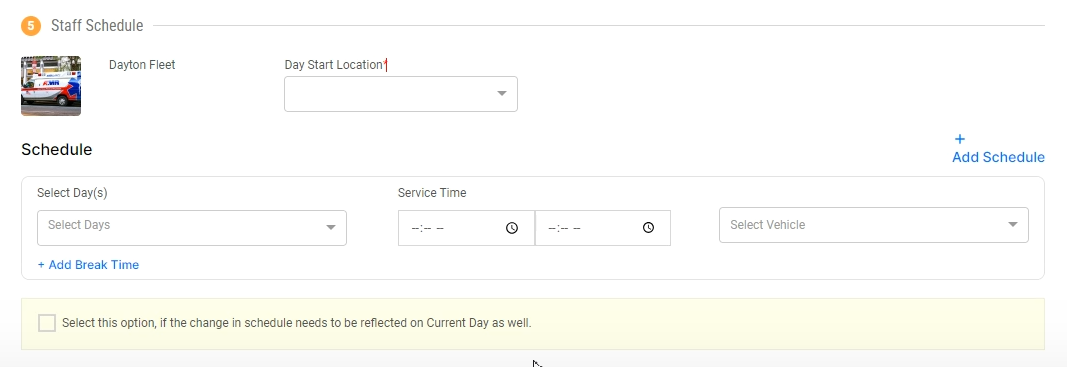
If a driver typically works the same schedule, you can add this directly on to their user profile by select day(s), shift times, and preferred vehicles. This will cause the Driver Shift to auto-generate for seven days in the future.
Note: select ‘Apply to Current Day’ if the change in schedule needs to be reflected on Current Day as well.