Creating Service Areas

Written by Jenn Southan
Updated at September 30th, 2026
Table of Contents
Service Area
A Service Area defines the geographic area where your organization provides NEMT services.
You can create a Service Area by drawing a boundary on the map around the area you serve. This helps Tobi understand the geographic coverage of your operations when planning and scheduling trips.
Depot
Each Service Area has a Depot, which represents the primary location associated with your fleet. Typically, this is the address of your business.
Multiple Service Areas
If your organization operates across different geographic regions or time zones, you can create multiple Service Areas.
Each Service Area can have its own geographic boundary and Depot location.
Example: If your organization operates in both Massachusetts and Connecticut, you could create separate Service Areas for each region and assign the appropriate Depot to each one.
Creating A Service Area:
- Log in to Tobi.
- Navigate to "Configurations"
- Select "Service Areas"
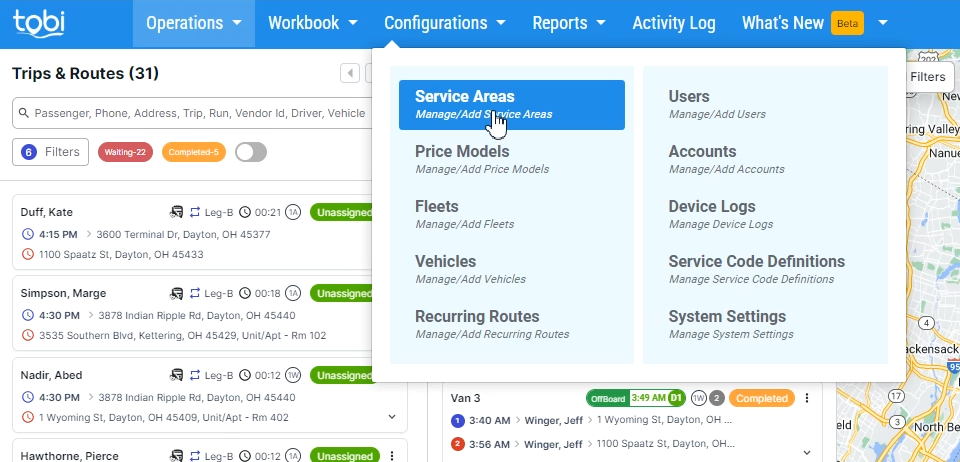
Click on the "Add New" button
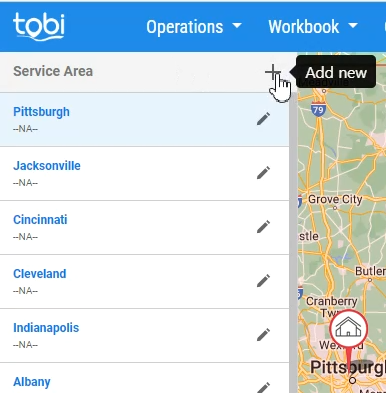
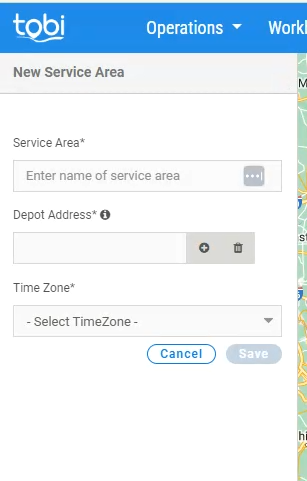
Input the name of the service area in the "Service Area" text box
On the map, look for the service area, and select the shape with which you want to draw the area in the upper tool bar
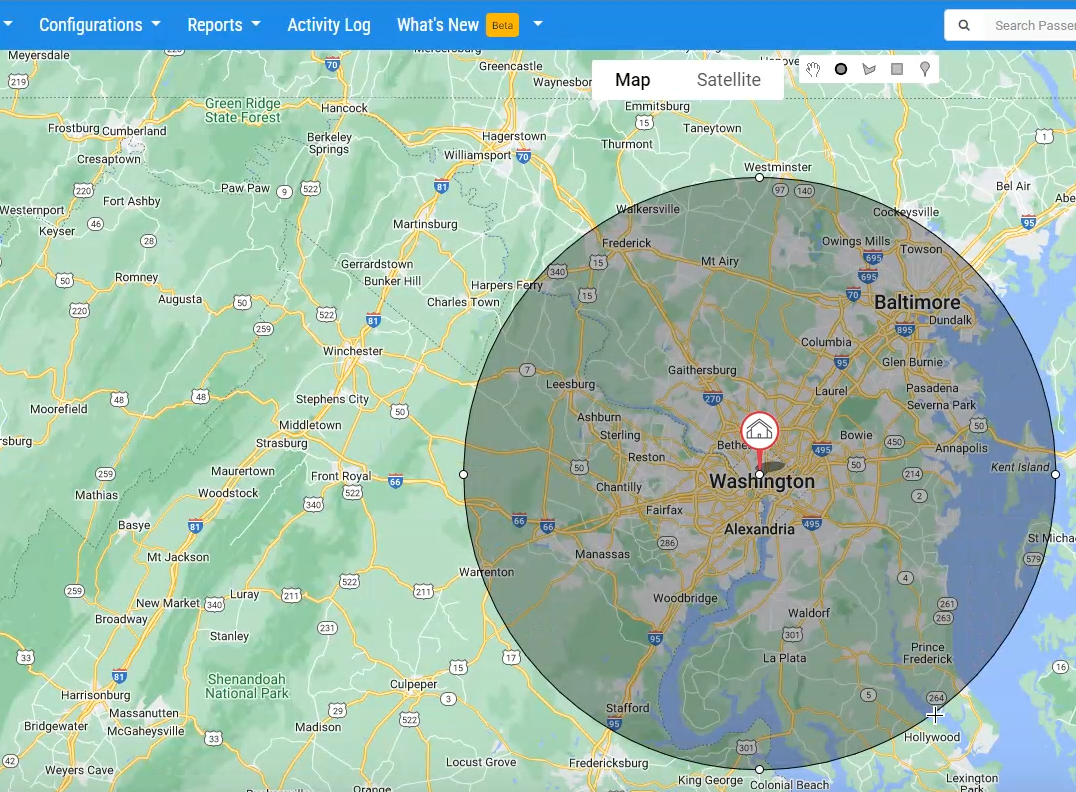
Drop the marker inside the service area or manually enter the location to add the depot address.
Select the time zone for the service area
Click save




